
Reminder: after resetting or flashing a new image, you will need to pair with your unit again (https://firewalla.com/install). Your old Firewalla icon will not work.
This tutorial explains how to flash the image of Firewalla Gold and Gold Plus boxes. To flash:
- Gold SE boxes, see this guide.
- Gold Pro boxes, see this guide.
- Purple series boxes, see this guide.
- Red, Blue, and Blue Plus boxes, see this guide.
In case anything goes wrong and the "reset to factory default" does not work, here is how to recover:
- Do not delete or unpair the previous instance in your Firewalla mobile app if you want to restore your previous configuration from it later using the Migration feature.
- Download the Firewalla Gold Series installer image: gold-fireupdater-0.0709.img.gz (Ubuntu 22.04.4 LTS)
MD5sum: 0f536fc1e023a2c0d8c103c3b41380d5
sha256: 66d0b1c7ce4741fcc79427a4718fb691f519b667a3959630529864bdb783c348- You don't need to decompress the file for flashing.
- Firewalla Gold Pro uses the same image as other Gold series boxes, so it's expected to see "gpro" in the name of the decompressed file.
- This version includes some general performance improvements
- [Gold Plus] PPPoE download performance can now reach 2.3gbps even with QoS enabled.
- [Gold] PPPoE download performance can now reach 1gbps even with QoS enabled.
- [Legacy image] Download link: fireupdater-3.0929.img.gz (Ubuntu 22.04 LTS)
MD5sum: 2c1e2628b20c9c374a489a2a0a4c0d5c
sha256: 094ad9229396d3adb9c96e189069659e447de606832daac75d9bf1ebc40346fa
- Download a flash program. We use etcher.io in this example.
Note: if Etcher doesn't work on macOS Catalina (10.15), please see below for a workaround.
- Launch the etcher and select the image you've downloaded before.
- Plug a USB drive with at least 16 GB disk space into your computer, and select it as the flash target.
- Select Flash!
- After flashing, unplug the USB drive from your computer and plug it into the other USB slot on Firewalla Gold (please DO NOT remove the red dongle, DO NOT use USB hub).
- Power cycle the Gold box (Unplug the power cable and plug it back in) to start flashing the Gold box. A display monitor may be connected via the HDMI port to watch the flashing process.
- Wait about 10 minutes (this may vary depending on the USB drive) for the beep sounds from the internal speaker of the Gold or Gold Plus box. (Gold SE does not have a speaker).
- If all is O.K., the Gold/Gold Plus will beep twice every 5 seconds.
- If flashing fails, the Gold/Gold plus will beep 3 times every 5 seconds.
In case of failure, see Troubleshooting below.
- Unplug the USB drive, then power cycle the Gold box.
- The box will be powered up as new, and ready for pairing.
Troubleshooting
Flashing should take about 10 minutes. If it takes substantially more than that, there may be some issues. Here are some things you can check:
- Check that the image is for Gold, not Gold SE.
- Check that USB drive was imaged successfully with Etcher.
- Try a different USB drive.
- In case of failure, if a monitor has been connected via HDMI, you may take a photo of the screen output and submit it with a support case.
Restoring Configuration
When installing the new version, the iOS app will use "Quick Setup" to restore the previous network configuration.
Then please use Settings -> Advanced -> Migrate from other boxes to restore rules and device names after installation. See the tutorial on how to migrate: How to migrate data from one Firewalla Box to another? Note: please do not unpair the old box before the migration. Just use the USB to flash, install, and migrate. After migration, you can tap and hold on the previous Firewalla Icon, and tap "unpair" to remove the previous pairing.
How to flash image file to USB drive via Linux command line (Warning, Pro users only)
# Make sure the device file is the device file of the USB drive, flashing to the wrong device file may cause unexpected data loss
gunzip -c <image_file> | sudo dd of=<usb device file> bs=32M status=progress

# Example
gunzip -c fireupdater-3.0.0929.img.gz | sudo dd of=/dev/sdc bs=32M status=progress
Known Issues
Etcher prompts for user confirmation before flash in Windows 11
Solution: Start Etcher with administrative privilege
Etcher stuck during flashing in Windows 11
Solution: Revert Etcher back to an old version. v1.18.11
Etcher fails to start flashing in MacOS
Solution: Unmount auto-mounted partitions from the USB drive by running the following commands in Terminal
x=$(diskutil list | awk '/external/ {print $1}')
sudo umount ${x}s1 ${x}s2
Etcher doesn't work on MacOS Catalina (10.15)
Solution: Here is an open issue on GitHub etcher project to track this: https://github.com/balena-io/etcher/issues/2833
Here is a workaround you can use before etcher fixes this issue.
Open Terminal.app
Run this command in the terminal:
sudo /Applications/balenaEtcher.app/Contents/MacOS/balenaEtcherType your MacOS login password when asked.
Older Images (Not recommended):
-
Ubuntu 20.04 LTS (Supports Gold Only)
- Download link: fireupdater-3.0.0113.img.gz (Firewalla Version: 2.1223)
- MD5sum: eb64d196a7a9f9d80f6fd914334aea46
-
Ubuntu 18.04 LTS (Supports Gold Only)
- Download link: firestaller-0.132.img.gz
- MD5sum: 22ecc3d8d41d874338597e620ca371f0
Comments
39 comments
Trying to flash a new image onto Firewalla Gold and get a failure: Error writing '/dev/sda' : No Space Left on Device. That leaves the device with a command prompt as follows:
{pi@fireinstaller ~]$
I cannot connect the app to the device and when the device boots without the flash image/installer it lands on the Aptio Bios configuration.
GOLD: I get an error when trying to flash Upgade: Too Much memory. I have installed extra RAM when I first got the box. Can’t I upgrade if i’ve upgraded the RAM, seems a little strange.
Andy
Are both Ubuntu 18.04 and Ubuntu 22.04 supported equally, or is it time to upgrade? Is there a compelling reason to do this?
@Firewalla do you recommend upgrading to Ubuntu 22.04? ^
Firewalla will support 18 and 22; most people don't need to update, but if you do, the migration process should be easy
Is it ok to do the upgrade to 22 even before initial setup of a new box?
@firewalla,
Trying to upgrade to Ubuntu 22 (Firewalla Gold), I see the migration within the app for restore option but the date against it shows almost 2+ yrs old. I'm not sure if that points back to the 1st backup date creation date (which is fine by me) or the last successful backup date (Which is super odd and of no use as there are N number of changes went into the configs from my end there after). Could you please clarify.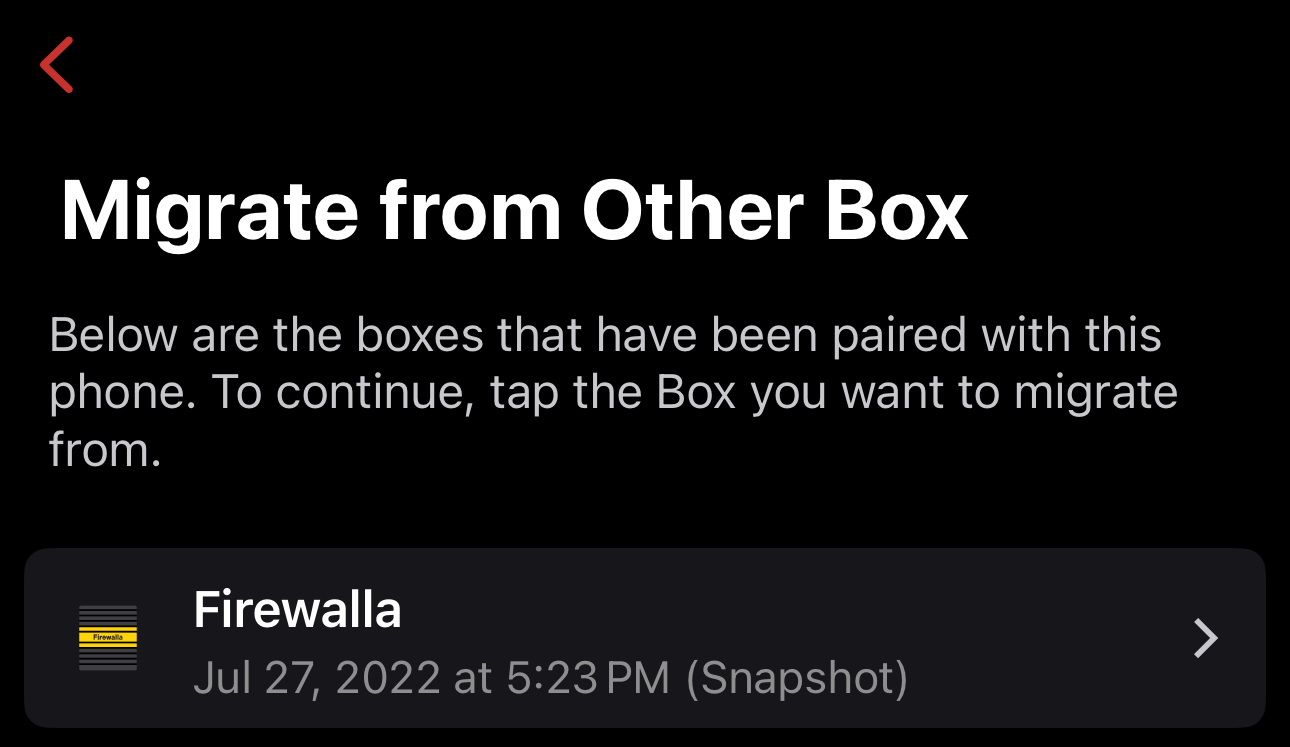
Also I run Unifi Docker container which serves as my controller. Would upgrading to Ubuntu wipes off those docker container configs (saved configs within Unifi)?
The date is the when the unit was first paired.
When you are upgrading, you are wiping everything on the unit; the migration will not (and can't) make a copy of your docker containers.
Is 24.04 coming?
Please sign in to leave a comment.