
If you have any problems pairing with Firewalla Purple, please consult our article on Firewalla Purple Installation Troubleshooting.
If you are experiencing issues, please create a support case. Our engineers will help you directly.
- STEP 1: Download and Install Firewalla App
- STEP 2: Know the Hardware
- STEP 3: Wire Up the Box
- STEP 4: Pairing Firewalla App with Purple
- STEP 5: Configure Networks and Wi-Fi
- STEP 6: Additional Configuration Settings
STEP 1: Download and Install Firewalla App


STEP 2: Know the Hardware
Firewalla Purple Back View 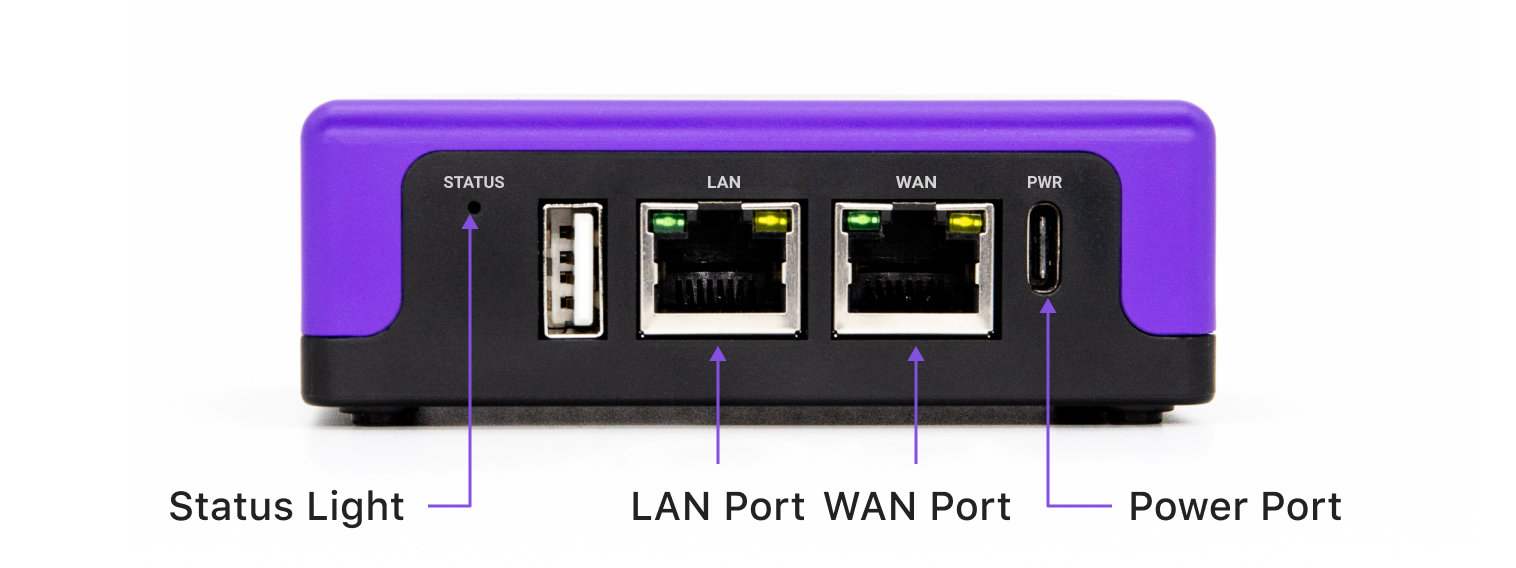
- The STATUS light is used to indicate the status of the box. Status Lights on Purple
- 1 USB Type-C Port (PWR) is used for power.
- The USB 2.0 port is for future expansion and is not yet supported.
- Two fully routable Ethernet ports labeled LAN and WAN.
There is no power switch. Purple will always power on when power is applied to the unit.
Firewalla Purple Front View
- The reset button can be used to reset. Tutorial: Reset Firewalla Purple.
- One SD Card reader slot for expanded space for customizations, such as running docker containers and reflashing the Purple if necessary. (Insert SD Card with the gold tips facing up and the brand and text side facing down.)
Status Lights on Purple
| Light | Firewalla Box Status |
| Blinking Blue | Booting Up |
| Fast Blinking Blue | Underlying App Communication |
| Solid Blue | No Ethernet Cable Plugged |
| Blinking Red | Network Down |
| Solid Red | System Error |
Ethernet Lights on Purple
| Color | Speed | Solid light | Flashing light |
| Green (left) | 100 Mbps | FE connection established | Data moving |
| Amber (right): | 1000 Mbps/1 Gbps | GE connection established | Data moving |
STEP 3: Wire Up the Box
Firewalla supports two different modes to enhance your security. We highly recommend using the Firewalla Purple in router mode. In this mode, Firewalla Purple will become your main router and will manage your network inline between your network and your ISP modem/router.
If you want to keep the existing router as the main routing engine. In this case, you can use Firewalla's "transparent bridge mode," and have Firewalla act as a bridge between your existing router and another switch. Please take a look at this guide: Learn more about bridge mode.
STEP 3.1: Set up as main router (Router Mode)
Not all networks are the same, and not everyone has the same service providers. To make your life simpler, check out our Router mode configuration guide to see how Firewalla boxes can run as routers in different ways.
Scenario A. You have an ISP-provided integrated modem/router
Connect Purple's WAN port to the LAN port of the Modem/Router, then connect your devices to Purple's LAN port.
- Turn off the routing function of the modem/router (change it to Bridge mode) to avoid double NAT on your network.
- You will need extra Wi-Fi devices such as a Wi-Fi router, Wi-Fi mesh router, or access point (a Wi-Fi-only device) to connect to Firewalla. It is best to run these devices in Access Point mode.
Firewalla Purple has a built-in Wi-Fi service. It does support Wi-Fi LAN, but due to the limited space for antenna and power requirements, Purple's Wi-Fi is only meant for a fairly small number of users in a small space. It is not intended to take the place of more powerful Wi-Fi APs.
Scenario B. You have your own router connecting to an ISP modem
Connect Purple's WAN port to the LAN port of your modem, then connect Purple's LAN port to the router's WAN port. After the connection, configure the old router into AP mode or Bridge mode. Purple will now be your router.
Scenario C. You have a mesh network
Connect the LAN port of the Modem to Purple's WAN port. Then connect the Purple's LAN port to the primary mesh unit's WAN port. Note: Do not connect the Purple's LAN port to a mesh satellite device.
After the connection, please change the mesh router to AP mode or Bridge mode. Check out our guide on specific brands/models.
If you have a Google Wi-Fi Mesh Network, here is an additional guide.
STEP 3.2: Adding to an existing network (Bridge Mode)
Firewalla Transparent Bridge Mode places a Firewalla Purple or Gold physically in the middle of an existing network without modifying the IP address of the network. Use bridge mode if:
- To preserve existing router functions due to compliance or the complexity of replacing the router.
- To filter traffic without creating additional networks.
Scenario
Connect Purple's WAN Port to the LAN port of your router, then connect the rest of your devices to Purple's LAN port. All network flows passing through Firewalla will be monitored and controlled.
STEP 4: Pairing Firewalla App with Purple
Before pairing,
- Reboot the modem/router before installing Purple in router mode. Some service providers may require you to do this when using a new router.
- Make sure your mobile phone has internet access. If you are setting up Purple in router mode, and your phone is still connected to Wi-Fi, we recommend switching to cellular mode. If you don't have cellular data or Wi-Fi access, here's a workaround: How to set up Gold/Purple as your main router if your phone has no Internet access.
- Turn on the DHCP function on your router if you have turned it off before. Otherwise, Purple may not be able to get its IP Address from it.
Note: Purple does not support the initial setup with a Wi-Fi WAN. If you'd like to use Wi-Fi as your only WAN connection, set it up with an Ethernet cable first, then switch the WAN to Wi-Fi or use Fail-over mode.
Open the Firewalla App on your phone, tap on the "+" icon, choose Firewalla Purple, and the App will guide you to wire up the box.
When Firewalla Purple is found, the App will ask you to scan the QR code on the bottom of the unit.
Next, select the model based on the wiring you did in STEP 3. Once the mode is set, and the Box is wired up correctly. Firewalla will automatically set up the network.
The setup process may take several minutes. You can refer to the status light next to the USB port to understand the status of the box.
STEP 5: Configure Networks and Wi-Fi
- Network Configuration and Segmentation using the Network Manager
- Firewalla Purple: Short Distance Wi-Fi
STEP 6: Additional Configuration Settings
- Getting Started With Your Firewalla
- Migrating From Other Boxes
- Device Groups
- Manage Rules
- Network Segmentation Use cases
- Try our beta web interface
After the Firewalla Box is installed successfully, an Auto-Configuration Wizard will appear on the app UI to help you quickly customize the box by asking a few questions. It can be triggered by tapping Settings -> Features -> Customize Now. This wizard may turn on/off features, create essential rules and etc; all the configurations can be changed on your app afterward. Watch a video tutorial or read more about this feature in our article about using the Auto-Configuration Wizard.
The Auto-configuration wizard will only deal with basic configurations. To better secure your network, please follow the Getting Started With Your Firewalla, if you have any questions, please join our community forum here.
Setting up Purple for Travel
See Traveling with and without Firewalla for how to set up Firewalla Purple for Travel.
Useful Links
If You’re Happy, We’re Happy
Firewalla is dedicated to providing quality products, efficient support, and powerful cybersecurity protection. Tell your friends and share your experiences. Let’s stay connected on Reddit, Facebook, or through our community!
Let Us Help!
Email us at help@firewalla.com. Our developers will answer you directly and are committed to providing exceptional support.
Comments
0 comments
Article is closed for comments.