
Firewalla App version 1.70 is available to all Beta users.
New to Beta? Follow the links below to join:
- iOS: https://testflight.apple.com/join/Nr0IMETY
Android: https://play.google.com/apps/testing/com.firewalla.chancellor
Some features require Box 1.984. Available for:
- Beta: Firewalla Gold Pro, Gold Plus, Gold Plus SFP, Orange, Purple, Purple SE
- Early Access: Firewalla Gold, Gold SE
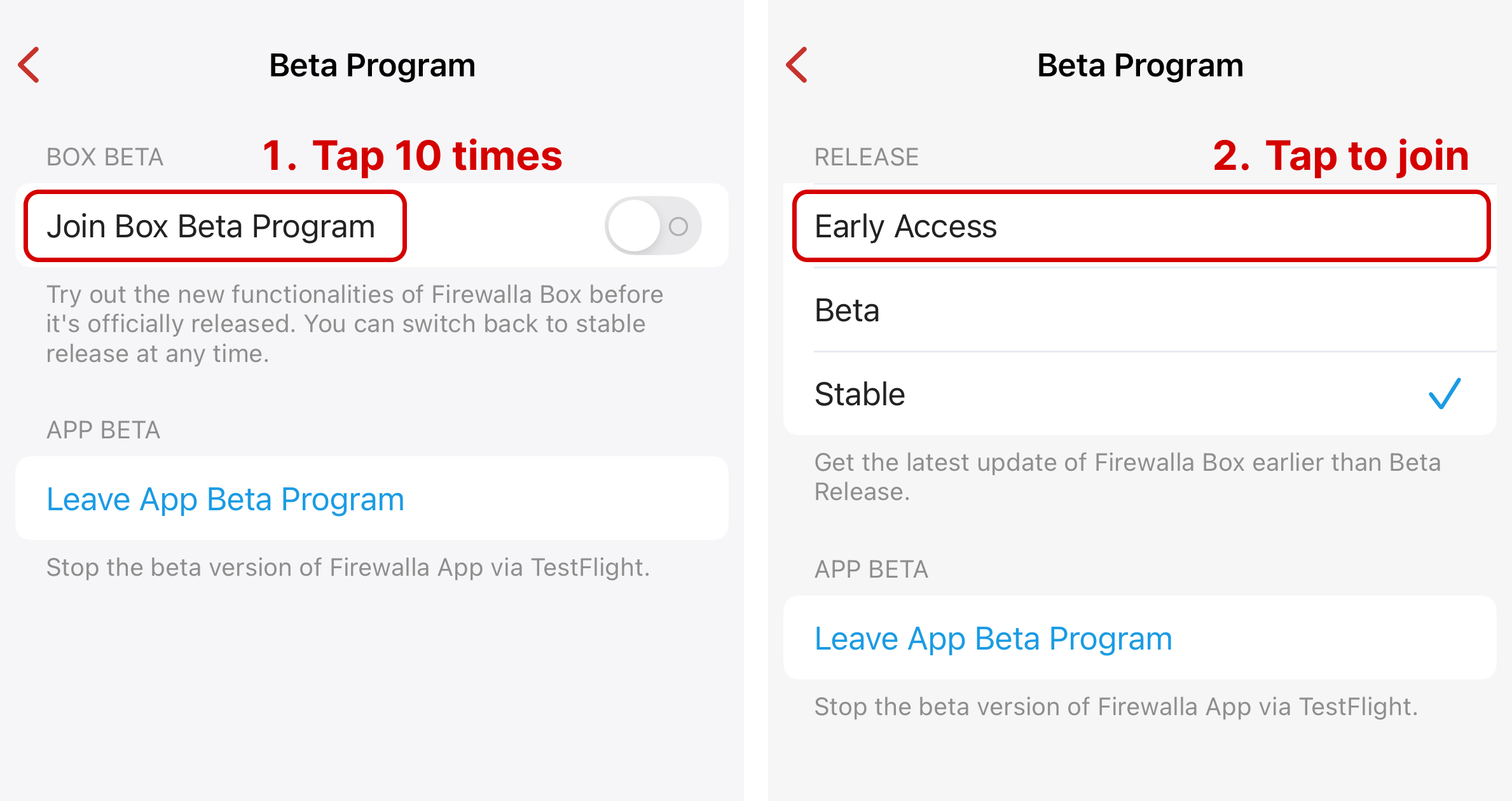
To get the Early Access Box:
- Open the Firewalla app, go to your box, and tap Settings > Advanced > Beta Program.
- Tap 'Join Box Beta Program' 10 times.
- The option to choose the release version will appear. Tap on Early Access.
New Features
1. New Event Journal
(Requires Box 1.984)
Events tell you what changed on your network and when. In 1.70, we've made events easier to find with a new "journal" style and added several new event types to cover Firewalla system processes.
- New Events Journal on the Main Screen
- Block Summary Event
- New Phone Paired
- System Vulnerability Scan
- Switch & AP Port Connectivity and Speed Change
1.1 New Events Journal on the Main Screen
Events now appear in a new "journal" card on your Firewalla's main screen. You'll see the most recent and important network and system events at a glance, without having to go looking for them. Note that events that appear on the main screen are dynamically ranked.
Tap the card to open the full events list for the last 7 days.
1.2 Block Summary Event
Firewalla now generates a daily summary event of what it blocked, so you can see the overall picture without reading through every flow. For the current day, the event will be generated when the first block happens and will get updated throughout the day if more blocks are generated.
The summary covers flows blocked by Advanced Threat Filtering, Region Blocking, Bypass Prevention, and Content Filtering.
1.3 New Phone Paired
When a new phone pairs with your Firewalla Box, Firewalla now generates an event and sends you a notification. If you didn't pair that phone, this is your signal to check who has access to your box.
Tap on the event to manage your Paired Phones, or go to Box Settings > Advanced > Paired Phones.
1.4 System Vulnerability Scan
If you have System Vulnerability auto-scan enabled, or trigger the scan from the App manually, a system event will notify you when the scan starts and also raise an event if it finds any vulnerabilities, so you can act upon it.
Learn more about Firewalla's System Vulnerability Scan.
1.5 Switch & AP Port Connectivity and Speed Change
Firewalla now records an event when a port goes up or down or changes speed on your Firewalla Access Point or Switches. A link that quietly renegotiated from 1 Gbps to 100 Mbps is one of the most common causes of "the internet feels slow," and until now, it has left no trace.
If you have wired devices connected to the Switch and they tend to flap while idling at night, you can easily spot it in the event.
2. Ad Block Stats
Ad Block now has its own stats, so you can see how much it's actually doing. View how many ads have been blocked over time in the past 7 days, along with the most recent flow blocked by Ad Block.
3. Dynamic Controls for Personal Devices
The control buttons on Device, Group, User, and Network detail pages are now dynamic based on Device Type. Instead of a fixed set of buttons, underneath the Activity & Flow Charts you'll see:
- For personal and entertainment devices, and users/groups/networks that contain personal and entertainment devices:
- Dynamic App controls, sorted based on your needs
- Internet and content category controls
- Ad block and other services controls
- For other devices, groups, and networks:
- Content filtering controls are folded; tap More to expand.
- App controls are hidden, but you can still create rules from Rules and select any matching target to block or allow.
4. Link Aggregation (LAG) for Firewalla Switch
The Firewalla Switch now supports Link Aggregation (802.3ad / LACP). Bond two or more ports into a single logical link for more bandwidth to a NAS, server, or uplink switch, and for failover if one cable drops.
- On the Firewalla App, tap Network > Topology > Switch > Ports.
- Tap the Settings icon in the top right corner to enter Port Settings.
- Select up to 8 ports to create a LAG.
Note:
- Please create or edit the LAG via the App before wiring up the cables; otherwise, the connection may loop, and you will not be able to apply the change.
- Switch LAGs may contain a mix of SFP and RJ45 ports.
- When ports with different negotiation speeds are combined into one LAG and connected to another device, the LAG will use the higher-speed port first. If the connection is not available, it will fail over to a port with a lower speed.
5. Device Active Protect on Specified Local Networks
(Requires Box Early Access)
Device Active Protect is now configurable per network. Instead of turning DAP on for the whole box, you'll be able to enable it on specific LANs or VLANs, so it can guard your IoT network while leaving your guest network alone.
6. Dynamic VLANs with Firewalla AP7
(Also available in App 1.69.3)
Enterprise Wi-Fi on Firewalla AP7 now supports Dynamic VLANs, so each user can be placed on their own network automatically when they sign in.
For Wi-Fi using Security Types: WPA2 Enterprise, WPA2/WPA3 Enterprise, and WPA3 Enterprise:
- Set a Default Network: On any Enterprise Wi-Fi, choose the Default Network. Devices join this network unless their user has been assigned a different one.
-
Assign a network to a user: Go to Users > tap a user > Network, then select a network. Every time this user signs in to Enterprise Wi-Fi, their devices are placed on that network.
- Choose Default to use the Wi-Fi’s Default Network.
Learn more about WPA Enterprise Wi-Fi (with RADIUS).
Enhancements
1. Live Throughput and Port Info on Firewalla Router and Access Point
(Requires Box 1.984)
(Coming soon for AP7)
Following the topology work in 1.69.3, you can now see live throughput and port information for your Firewalla Box and Access Points. When the app is connected to the local network, from your Firewalla's main screen, tap Network > Topology, then tap into a Box or AP to see live traffic on each port.
For any downlink port, you can also restart the port via the app, without having to unplug the device manually. Just go to the port detail page and tap Restart This Port.
2. Name and Add Notes to Ports on Firewalla Devices
You can now name every port on your Firewalla devices and attach a note to it. Instead of remembering that "Port 2" refers to a specific PC, label it "Office Desktop" and add important notes on its use to make troubleshooting easier.
From your Firewalla's main screen, tap Network > Topology > tap into your Firewalla Box, Switch, or AP7. Tap any port, then tap the pen icon next to the Port name. Notes can also be added from here.
3. Edit Your AmneziaWG VPN Network & MTU
You can now edit an AmneziaWG VPN network after it's been created. From your Firewalla's main screen, tap Network > AmneziaWG > Edit, change the subnet and DNS servers, and save.
Some ISPs require a different MTU value to establish VPN connections. If you hit this issue, go to the VPN Servers page > tap Setup under AmneziaWG > tap any client > tap MTU in the advanced settings.
Note that after updating your VPN profile, you'll need to download the new profile and re-import it to your VPN client app and re-establish the connection.
Learn more about AmneziaWG VPN Server Configuration
4. Security Info Lookup on DAP Targets
You can now look up security information on any Device Active Protect target. Tap a target in a device's allowed or blocked targets to see what that domain or IP actually is.
5. Exclude Devices for Content Filtering and Bypass Prevention
(Requires Box 1.984)
Similar to Ad Block, you can now apply Content Filtering and Bypass Prevention to all devices and exclude specific devices (via Controls), allowing it to be applied to all new and ungrouped devices by default.
6. Other Enhancements
- Migration from Firewalla Orange to Gold boxes: With App 1.70, you can now migrate settings from Firewalla Orange to all Firewalla Gold series during initial setup or after migration (via Box Settings > Advanced > Migrate from Other Box).
- Internet Activity Time on the Users List: The Users list now shows Internet Activity time for each user, so you can see who's been online and for how long without tapping into each one.
- Devices Stay in Their Microsegmentation: Devices that were automatically assigned to a microsegmentation can no longer be moved out of it by editing the group. Previously, the move appeared to work and then silently reverted when devices were connected again, which made it look like the assignment was broken.
- Accessories Connected via USB (Requires Box 1.984): Red Security Dongle or Wi-Fi SD connected over USB now appear in the app, which makes it easier to see what's attached when you're troubleshooting.
- Paired Phones First Seen Times: When managing your Paired Phones (via Box Settings > Advanced > Paired Phones), the app now displays when the device was first seen to help you better identify unrecognized device pairings.
-
More Details on Network Events: When WAN disconnections or high latency/packet loss events are detected, Firewalla will display more details from the Events list, so you can see the possible cause of the event at a glance.
Bug Fixes
- Fixed an issue where the app could not read the VPN interface IP on iOS 27, which broke WAN Throughput and live data while connected to Firewalla's VPN Server.
- Fixed an issue where the Firewalla Box itself could be incorrectly counted in a LAN.
- Fixed an issue where the bottom of the user list could be hidden behind the keyboard on the Global Search page.
- Unbound CVE Fixes
- Fixed the issue where some top flows are not hashed
-
Other minor display improvements and bug fixes.
Known Issues
-
On boxes using 1.984 Beta or Production releases, device exclusions for Content Filtering and Bypass Prevention are supported only for Apple Private Relay and DoH Services. The remaining options are supported only on Early Access boxes.
Comments
5 comments
I think the Firewalla Team hit the ball over the fence with this update. A lot of great enhancements and features. Nice job.
This is a great update. I'm still working through the changes, and am really happy with what I'm seeing.
Nice to see the features rolling in on the switches. Quality of life additions - keep 'em coming! Great product so far.
Thank you for the summarised port flapping. Those events kept spamming the log but now it's easy to read
I hate the port flapping flags. I didn’t realize I have two serious and somewhat frequent port flapping issues. Before this update, fully uninformed. Now taking steps to try and resolve. First step is purchasing better CAT8 cables with metal ends, appear to connect more solidly than plastic ends. Thank you for this tool
Please sign in to leave a comment.