DNS resolution over VPN

Firewalla Gold
Wireguard VPN
Server2016 current DC onsite 192.168.105.x
Server2025 new DC offsite 192.168.1.x
I was able to join the new server to the domain over the VPN. However I cannot ping the new DC from the domain. I've set static assignments in ipconfig, routes in powershell, and records in DNS managers. I've set routes, rules, and group assignments in the firewalla app, according to support docs and forums. But I can't get the current DC to sync over the VPN. I wanted to let this one run for a few weeks remotely before I bring it in to transfer roles and pull the other but I'm having no luck. AD is unable find the VPN connected server from the domain in order to sync. Getting RPC server unavailable errors when attempting it. Unable to traceroute. Help, please.
PS C:\Users\Administrator> Test-NetConnection -ComputerName 192.168.1.2 -Port 135
WARNING: TCP connect to (192.168.1.2 : 135) failed
WARNING: Ping to 192.168.1.2 failed with status: DestinationHostUnreachable
ComputerName : 192.168.1.2
RemoteAddress : 192.168.1.2
RemotePort : 135
InterfaceAlias : 10GB Intel Port1
SourceAddress : 192.168.105.3
PingSucceeded : False
PingReplyDetails (RTT) : 0 ms
TcpTestSucceeded : False
-
Yes, both domain controllers are running Windows Defender firewall. All applicable exclusions, forwards, and rules have been applied (to the best of my knowledge) for AD, DNS, etc, there. It also has the Firewalla Gold covering the entire network and controlling the VPN. I disabled both software firewalls and enabled Emergency Access modes in the FW app to test the connection, still unable to sync
-
First I must say that I typed out this reply 2 times and clicked Submit only to have the page refresh with a blank box. Now on attempt THREE, I've typed it into notepad and pasted it here after removing formatting because I just can't again...
For clarification:
Onsite DC = RH-SVR-1
Remote DC = RH-Server2025I can communicate just fine everywhere except from SVR-1 to Server2025. I can remote into SVR-1 from Server2025, ping it, nslookup, file system access, etc.
Server2025 has dual NICs. The first is set to DHCP. The second has a static IP of 105.5 and DNS assignments of 105.3 (SVR-1) and 105.5 (itself).
-Results from RH-SVR-1:
PS C:\Users\Administrator.HANAUER> nslookup rh-server2025.hanauer.local
Server: UnKnown
Address: 192.168.105.3Name: rh-server2025.hanauer.local
Addresses: 2600:6c5e:513f:4eb5::11b0
fd00:dc08:da37:f0ea:64c5:becc:9f03:35e0
2600:6c5e:513f:4eb5:f888:5bfb:3777:fad7
2600:6c5e:513f:4eb5::11ae
fd00:dc08:da37:f0ea:ae46:2c4c:c2d7:bb24
2600:6c5e:513f:4eb5:c3a9:675c:bb19:7303
192.168.105.5
192.168.1.2
xx.64.246.2-Results from RH-Server2025:
PS C:\WINDOWS\system32> nslookup rh-svr-1.hanauer.local
Server: rh-svr-1.hanauer.local
Address: 192.168.105.3Name: rh-svr-1.hanauer.local
Addresses: ::
192.168.105.3This is the domain nslookup result, same from both servers
Name: hanauer.local
Addresses: 2600:6c5e:513f:4eb5::11ae
2600:6c5e:513f:4eb5:c3a9:675c:bb19:7303
fd00:dc08:da37:f0ea:ae46:2c4c:c2d7:bb24
2600:6c5e:513f:4eb5::11b0
2607:f280:3002:1290:6d40:bac7:1780:fb25
2600:6c5e:513f:4eb5:f888:5bfb:3777:fad7
fd00:dc08:da37:f0ea:64c5:becc:9f03:35e0
192.168.105.3
192.168.105.5
192.168.1.2
xx.64.246.2 -

Hi Steve, thanks for the details. Just to make sure we're on the same page, can you confirm which WireGuard setup you're using?
- Firewalla Site to Site VPN Client (Firewalla to Firewalla)
- Firewalla WireGuard VPN Server (where the remote DC is connected as a WireGuard Client)
- Or something else?
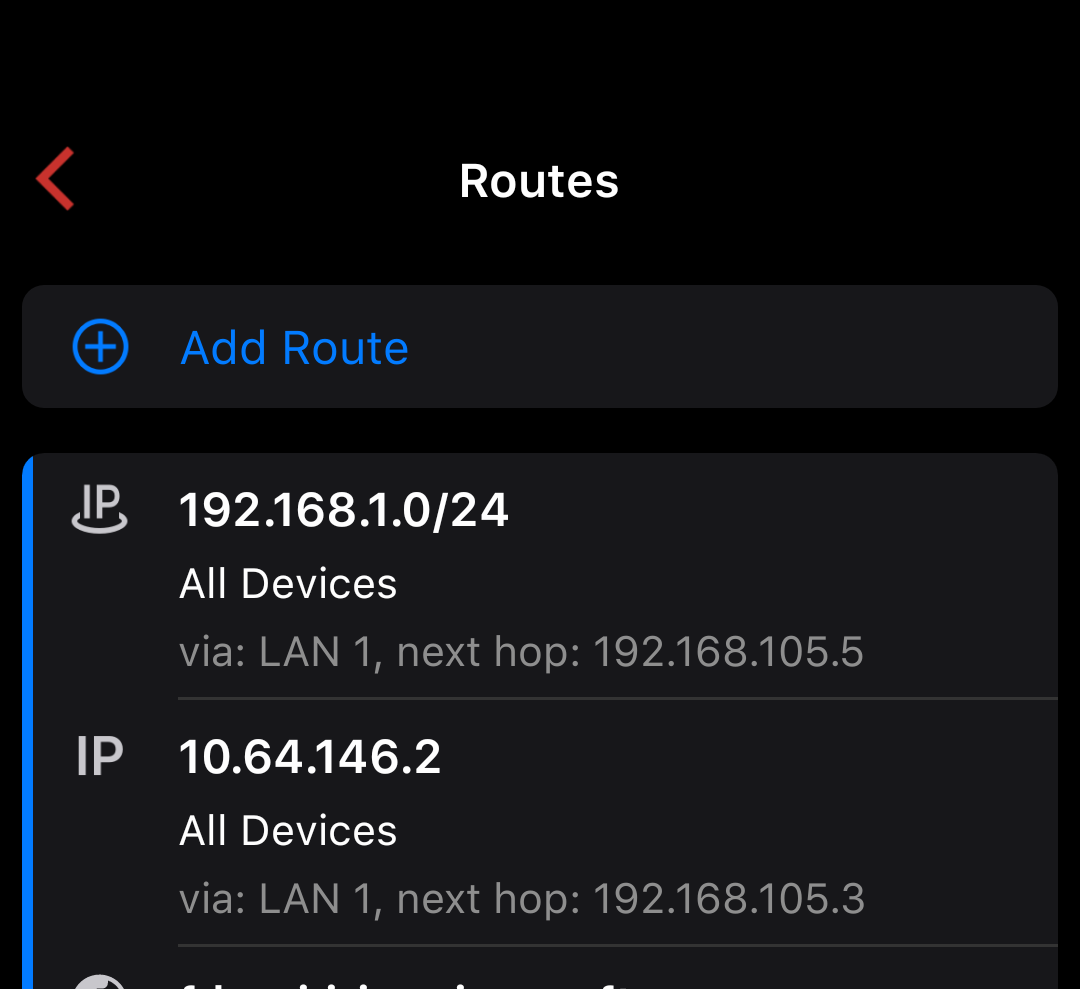
Do you mind also sharing examples of your Routes in the Firewalla app? We'd like to verify that the remote subnet (192.168.1.x) is properly defined and routed.
-
As requested:
I'm using the WireGuard VPN Server. Here's a screenshot:
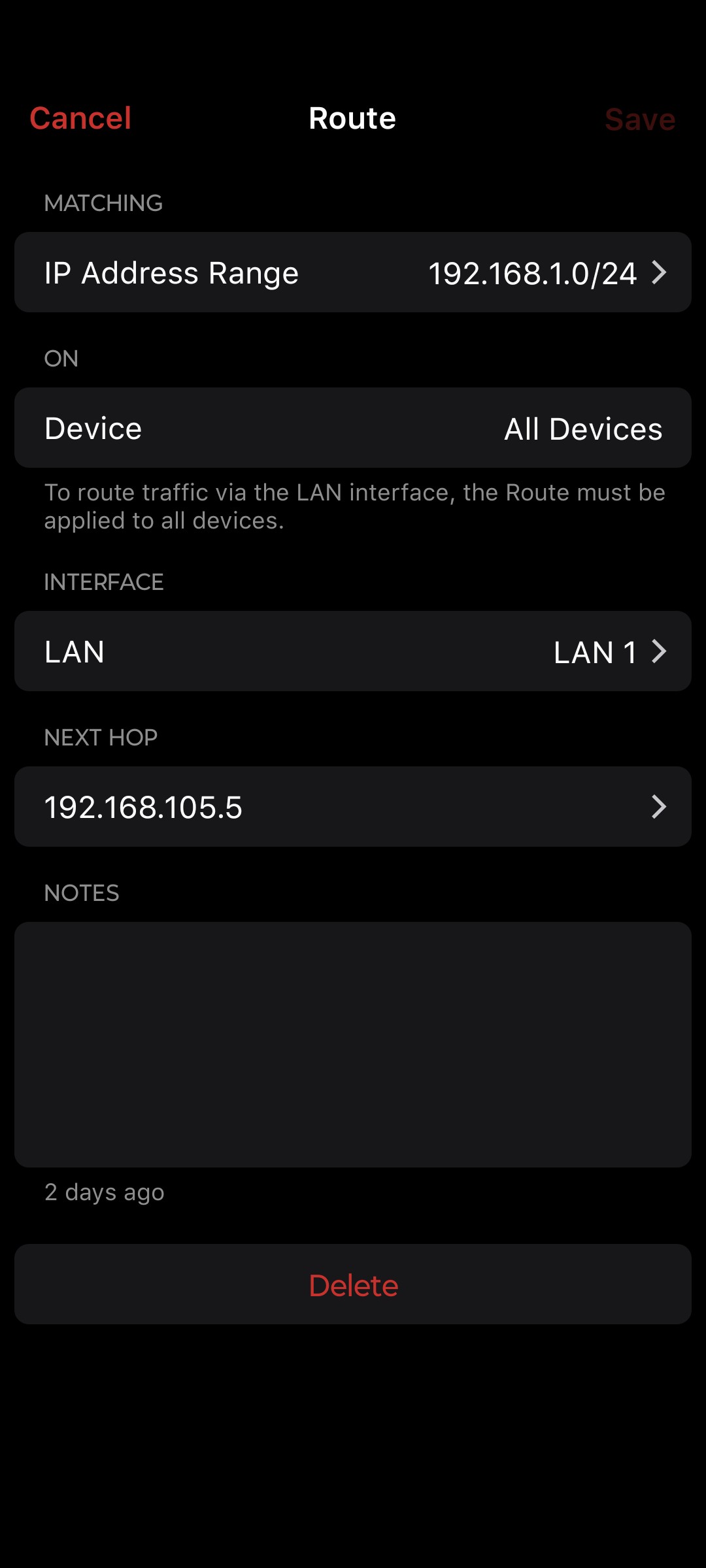
Sorry about that scale. Here's Server2025s netlogon error if that helps identify anything for you:
The dynamic registration of the DNS record '_ldap._tcp.DomainDnsZones.hanauer.local. 600 IN SRV 0 100 389 rh-server2025.hanauer.local.' failed on the following DNS server:
DNS server IP address: 192.168.105.3
Returned Response Code (RCODE): 0
Returned Status Code: 9016For computers and users to locate this domain controller, this record must be registered in DNS.
USER ACTION
Determine what might have caused this failure, resolve the problem, and initiate registration of the DNS records by the domain controller. To determine what might have caused this failure, run DCDiag.exe. To learn more about DCDiag.exe, see Help and Support Center. To initiate registration of the DNS records by this domain controller, run 'nltest.exe /dsregdns' from the command prompt on the domain controller or restart Net Logon service.
Or, you can manually add this record to DNS, but it is not recommended.ADDITIONAL DATA
Error Value: DNS signature failed to verify.I have also edited the WinRM public firewall rule on Server2025 to allow access from SVR-1.
-

I am not sure why you need the routes for these, are you adding them yourself? Why?
The WireGuard network is the one you see when you tap on Network button, you will see "WireGuard", it should be a 10.x.x.x address. When you are connecting to the network via WireGuard, you are going to get an IP from this. And if you have a PC/MAC/NAS on the LAN that blocks outside their LAN, you can allow this address space.
The WireGard network is by default routed, so there is no need to add any route
-
Now this is STRANGE. I was about to say that when I open my network interface in the app there's no Wireguard listed. Previously i had LAN1, ISP1, and OpenVPN. But after adding the route manually the network has appeared. I just deleted the route to test and it did remain in Networks. Testing now, will edit this post with results.
-
Okay I started working with Gemini on this and we got the problem solved. I had it generate a detailed synopsis explaining how we overcame the RPC error issue and got AD to successfully sync over the wireguard vpn. I hope this helps somebody in the future! :) Stay groovy everyone!
This guide covers the specific steps taken to fixActive Directory Error 1722 over a Firewalla Gold WireGuard VPN between an onsite PDC (192.168.105.3) and a remote Server 2025 (192.168.1.2).
Step 1: Fix Routing & Interface Priority (Remote Server)The remote server often tries to "reply" via its local ISP gateway instead of the VPN tunnel.- Identify WireGuard Interface Index:
Get-NetIPInterface | Format-Table InterfaceAlias, InterfaceIndex, InterfaceMetric - Prioritize VPN (Lower Metric = Higher Priority):
Set-NetIPInterface -InterfaceIndex [Index#] -InterfaceMetric 5 - Add Persistent Return Route:
route -p add 192.168.105.0 mask 255.255.255.0 XX.XX.XX.1
Step 2: Firewalla ConfigurationAD replication fails if packets are fragmented or ports are closed.- Set MTU to 1280: In Firewalla WireGuard settings, change MTU to 1280. This is the "magic number" for AD-over-VPN stability. Firewalla WireGuard Guide.
-
Allow Critical Ports: Create an Allow Rule between the two server IPs for:
- TCP 135 (RPC Endpoint Mapper)
- TCP 49152-65535 (RPC Dynamic Range)
- TCP/UDP 389, 445, 88, 3268 (LDAP, SMB, Kerberos, Global Catalog)
Step 3: Windows Firewall (Remote Server)Open the "back door" for the onsite PDC to connect.powershellNew-NetFirewallRule -DisplayName "AD Repo (RPC-EPMAP)" -Direction Inbound -Action Allow -Protocol TCP -LocalPort 135 -RemoteAddress 192.168.105.3 New-NetFirewallRule -DisplayName "AD Repo (RPC-Dynamic)" -Direction Inbound -Action Allow -Protocol TCP -LocalPort 49152-65535 -RemoteAddress 192.168.105.3 New-NetFirewallRule -DisplayName "AD Repo (LDAP/SMB)" -Direction Inbound -Action Allow -Protocol TCP -LocalPort 389,445 -RemoteAddress 192.168.105.3Use code with caution.Step 4: DNS & AD Site AlignmentForce AD to use the working tunnel IP instead of the unreachable LAN IP.- DNS Host Record: In DNS Manager, delete the
192.168.1.2record for the remote DC. Ensure only the WireGuard IP (XX.XX.XX.2) exists. - AD Subnet Mapping: Open AD Sites and Services, create a new Subnet for
XX.XX.XX.0/24, and associate it with the PDC's Site. - Clear Stale Tickets (PDC):
ipconfig /flushdnsklist purge
Step 5: Force & Verify Sync (PDC)Use the command line to verify the handshake.- Test Connectivity:
Test-NetConnection -ComputerName XX.XX.XX.2 -Port 135 - Force Sync:
repadmin /syncall /AeD - Check Status:
repadmin /showrepl
Result: SyncAll terminated with no errors. - Identify WireGuard Interface Index:
Please sign in to leave a comment.
Comments
11 comments