Mount an external drive

I'm no Linux expert, but I've installed Samba and Automount to be able to use an external drive on the USB port on my Firewalla Blue. But I can't get it to work. Is it possible to write a 'How to' for linux newbies?
-

Hey I might be a year late, but I've literally just did this on my Firewalla RED.
Here is a guide based on the notes I took whilst messing around to get this to work (took a couple of failed attempts and recovering the box back to factory to get it right)
GUIDE:
SSH into your Firewalla box and then first update and insall Samba, I used these two commands:
# sudo apt-get update
# sudo apt-get install samba samba-common python-glade2 system-config-sambaOnce installed, you then want to find your USB disk (make sure you have plugged it in!).
# sudo fdisk -lThis will give you an output, the bottom line should be somthing like
/dev/sda2 * 8192 15523839 15515648 7.4G b W95 FAT32Create a directory for your share:
# sudo mkdir /media/usb-drive
# sudo chmod 744 /media/usb-driveNow mount the drive (replace sda2 with whatever your drive comes up as from the fdisk -l command ran earlier):
mount /dev/sda2 /media/usb-drive/
test it worked by typing
# mount
If no output, it didn't work.
To see whats on the drive,
# cd /media/usb-drive
Type the below to get a full listing
# ls
OK now back to the Samba set up,
Create a permission for the sharing:
# sudo chown -R nobody:nogroup /media/usb-drive/
# sudo chmod -R 0775 /media/usb-drive/Copy the Samba default configuration file to a backup (in case you need to revert)
# sudo cp /etc/samba/smb.conf /etc/samba/smb.conf.backup
Edit Samba configuration file
# sudo vi /etc/samba/smb.conf
Add the next lines to Samba configuration file (press "i" to enable input/edit):
-----------------------------------------------------
[global]
workgroup = WORKGROUP
server string = Samba Server %v
netbios name = Firewalla-Box
security = user[SambaShare]
Comment = Samba Shared Directory
path = /media/usb-drive
writable = yes
guest ok = yes
read only = no
force user = nobody-----------------------------------------------------
Press Escape then save by typing
:wq
Restart Samba
# sudo service smbd restart
You should be good to log into the share
type your path in file explorer (replace x with Firewalla's IP)
\\192.168.1.x\sambashare -
Here is a better/cleaner guide with screens. Just tried it it works fine.
-

You guys are working way too hard. Just use sshfs.
I’m not a Samba fan - why install something new when the functionality already exists. But yes, there are times and places where samba is great - but not on tight lil Firewallas.
SSHFS (SSH Filesystem) is a filesystem client based on FUSE for mounting remote directories over an SSH connection. SSHFS is using the SFTP protocol, which is a subsystem of SSH and it is enabled by default on most SSH servers.
When compared to other network file system protocols such as NFS and Samba the advantage of SSHFS is that it does not require any additional configuration on the server side. To use SSHFS you only need SSH access to the remote server - which we already have.
Because SSHFS uses SFTP , all transmitted data between the server and the client is encrypted and decrypted. This results with a slightly degraded performance compared to NFS, and higher CPU usage on the client and server.
-

Gold reboot always wipe things out. You can put a script in https://help.firewalla.com/hc/en-us/articles/360054056754--Firewalla-Gold-Customized-Scripting-
-
No, but feel free to write one. :-)
Start here.
https://hub.docker.com/r/servercontainers/sambaUse this as an example.
https://help.firewalla.com/hc/en-us/community/posts/1500001199002-Cloudflare-DDNS-Docker-Setup-on-FWG -

I have a script that I can run already that does everything to get samba up and running. It works fine when I run it manually. But I see no evidence of it running when my Gold reboots. I started looking at using Docker, but I have no experience with it and don't understand the paradigm either, so I'd prefer to us my script since I think I'm at 99%.
I even chmod'd my start.sh file up to 777, so anybody can do anything with it at this point, yes?What am I missing??
-

I've has a script I used to configure USB disk mount and SMB manually working on Firewalla...finally trying to set up so that it all happens automatically after reboot. I'm having a problem with the USB mount. The script runs when firewalla reboots...I know this as it writes to /var/log/syslog... but the mount does not persist after the script runs.
Here is my 01_mount_usb.sh script that is located in ~/.firewalla/config/post_main.d:
#!/bin/bash
echo mounting usb drive...
sudo mkdir -p /media/usb-drive
sudo chmod 755 /media/usb-drive
sudo mount -t auto /dev/sda1 /media/usb-drive
echo usb drive status df: `df | grep /dev/sda`
echo usb drive status mount: `mount | grep sda`
Note the last two lines test that the mount was successfully and write the result into the /var/log/syslog. Those entries in the log file look like the following when the mount is successful:
May  3 10:50:24 firewalla main-run[12510]: usb drive status df: /dev/sda1 488353796 41547760 446806036 9% /media/usb-drive
May  3 10:50:24 firewalla main-run[12510]: usb drive status mount: /dev/sda1 on /media/usb-drive type fuseblk (rw,relatime,user_id=0,group_id=0,allow_other,blksize=4096)
However, after firewalla is booted and I mount the drive, there is no data. If I ssh into the firewalla and look at the /media/usb-drive/ directory it shows as empty which tells me the drive is not currently mounted:
pi@firewalla:~ (Firewalla-ASUS) $ ls -la /media/usb-drive/
total 0
drwxr-xr-x 2 root root  40 May  3 10:50 .
drwxr-xr-x 1 root root 100 May  3 10:50 ..
pi@firewalla:~ (Firewalla-ASUS) $
If I run the mount_usb.sh script manually from command line then the mount is successful and the output to the command line is similar to the entries in the log file:
pi@firewalla:~/.firewalla/config/post_main.d (Firewalla-ASUS) $ ./01_mount_usb.sh
mounting usb-drive...
usb drive status df: /dev/sda1 488353796 41547760 446806036 9% /media/usb-drive
usb drive status mount: /dev/sda1 on /media/usb-drive type fuseblk (rw,relatime,user_id=0,group_id=0,allow_other,blksize=4096)
and the contents of the USB drive is visible from the command line and via SMB mounted on local computer.
So my question is why is the usb drive mount not persisting after the firewalla is booted?
-

Hello,
Does anyone have better instructions for mounting and sharing a drive? I am struggling to get Andy's instructions to work.
I am on a firewalla Gold SE my Hard drive I am trying to mount is a 4TB HDD that has been formatted to exfat. I also tried NTFS format with the same results.
When I enter "sudo apt-get update" i get a warning message
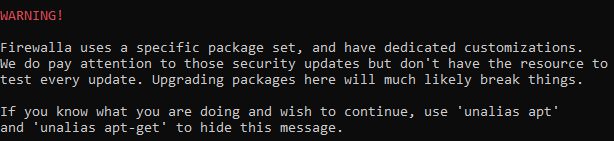
is it necessary to turn this off? the unalias apt and unalias apt-get commands do not seem to work when I enter them.
Everything else seems to work until I get to the To "see whats on the drive portion". nothing happens

When I do the next step of "Samba set up" it says no such file or directory

When I "Edit Samba configuration file" i get an warning.
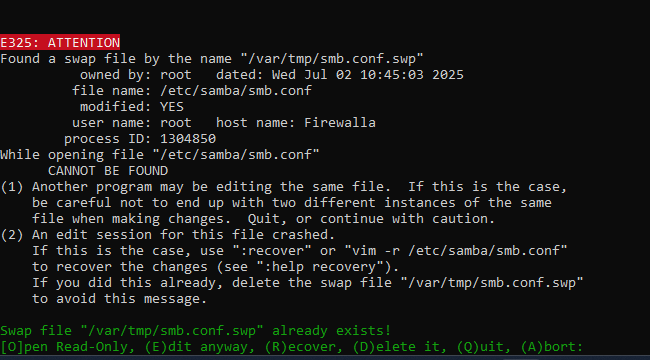
I chose delete it
Any help would be greatly appreciated
-

I got this working today on Firewalla Gold, following most of the instructions from the OP, but had to tweak a couple things. Below are the commands I used after logging into the box. Hope it helps someone!
unalias apt

sudo apt install samba

sudo mkdir /media/usb-drive

## replace /dev/sda1 below with your drive id, which can be found with "sudo fdisk -l"
sudo mount /dev/sda1 /media/usb-drive/

sudo chown -R nobody:nogroup /media/usb-drive/

sudo chmod -R 0775 /media/usb-drive/

sudo cp /etc/samba/smb.conf /etc/samba/smb.conf.backup

## paste the entire command from the first line below until the second EOF into the terminal and hit enter
sudo tee -a /etc/samba/smb.conf > /dev/null << 'EOF'
[sambashare]
    comment = Samba on Firewalla
    path = /media/usb-drive
    read only = no
    browsable = yes
    writable = yes
    guest ok = yes
    force user = nobody
EOF

sudo service smbd restart
I also added the above as a shell script at /home/pi/.firewalla/config/post_main.d so when it reboots, this whole setup gets run again. Haven't tested that part yet but we'll see the next time the power goes out!


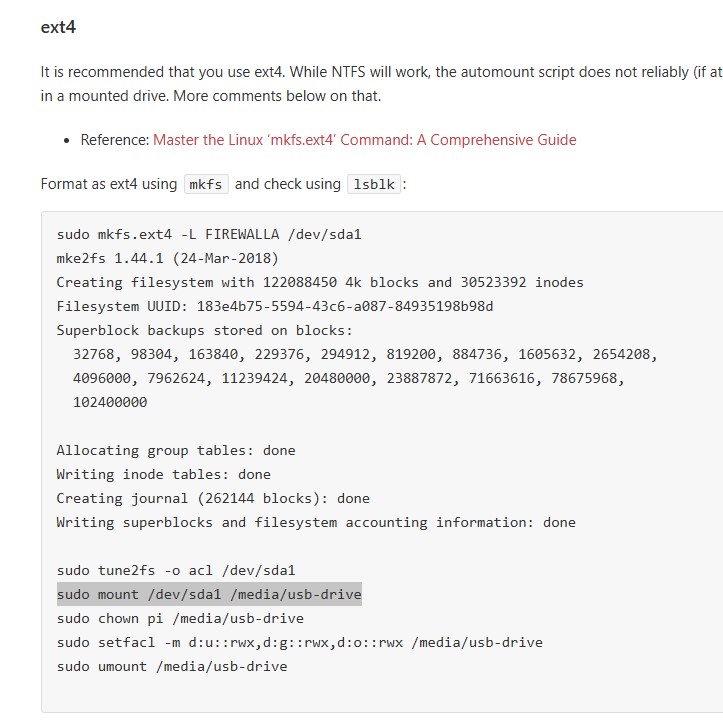

Please sign in to leave a comment.
Comments
23 comments